
Add a coding agent
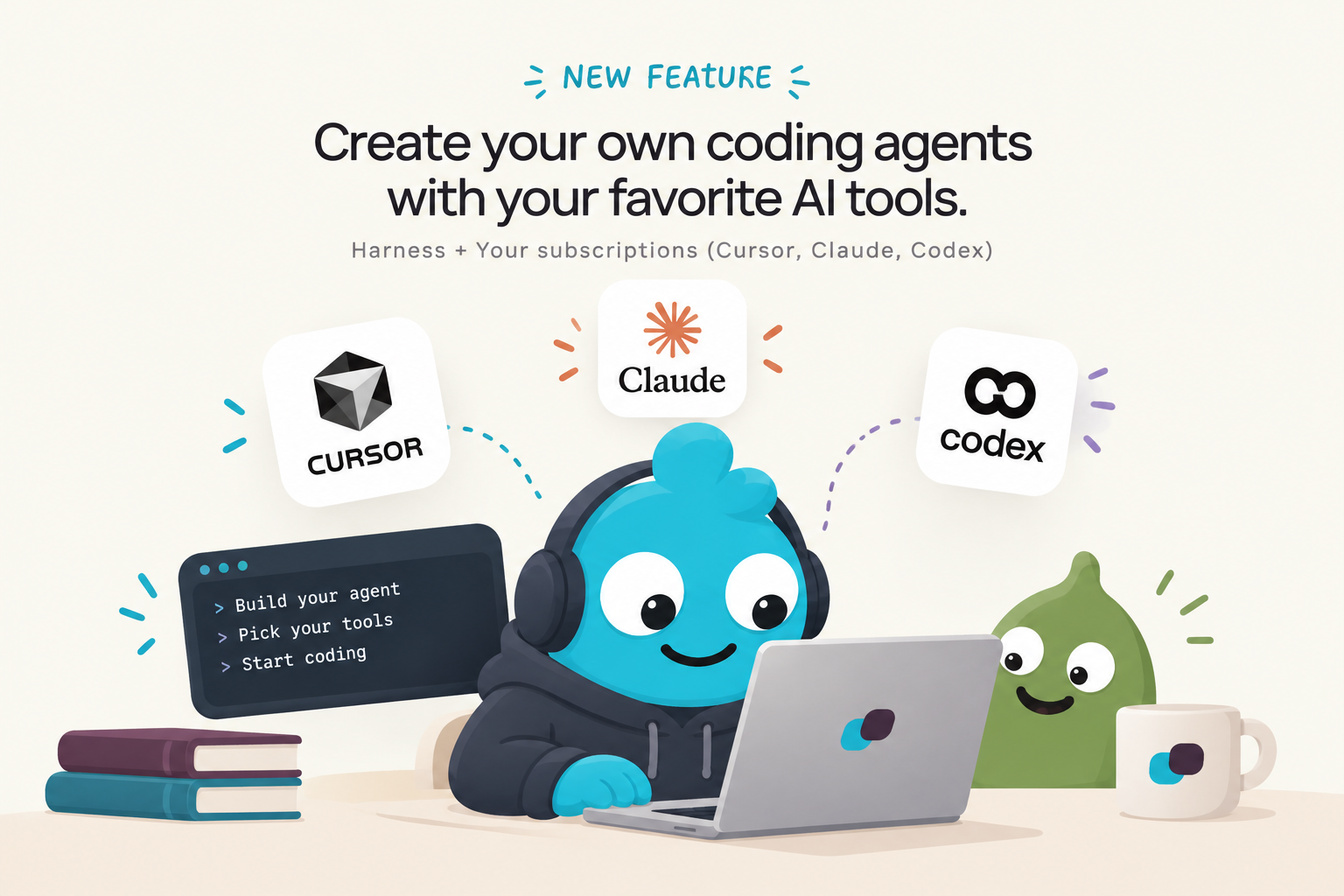
This page adds an agent that changes code in one of your repositories.
A coding agent hands the code work to a harness. A harness is a coding tool: Claude Code, Codex, Cursor, or Antigravity. It runs on the agent's machine, on your own subscription. The agent writes the brief, checks the result, and reports back.
You need:
- the guild from Your first guild
- a public repository on GitHub, or any public git repository
- a Claude Code subscription. The other harnesses work too, with the differences listed at the end.
1. Give the machine room to code
A coding agent needs a machine of the Code tier: 2 CPUs and 4 GiB. Owners and admins of the organisation can change machines.
Click Settings in the rail. Open Machines. Click Edit on your machine. Pick Code under Tier. Click Save.
You should see the Code tag on the machine's card.
2. Add a repository to the guild
A repository is shared by every coding agent of the guild. Each agent gets its own copy.
Open the guild. Open its Settings tab. Scroll to Repositories. Fill in the form:
- Name:
demo - URL: the address of your repository, such as
https://github.com/you/demo
A GitHub login select appears for a GitHub address. Pick None: clone anonymously. Click Add repository.
You should see demo in the list, tagged anonymous.
3. Create the coding agent
In the sidebar, click Add agent under the guild. Click Coding agent. A dialog opens on five steps.
- Identity: type
coderas the Name, andMakes small, tested changes to the codeas the Focus. Click Next. - Machine: the step names your machine. Click Next.
- Harness: click Claude Code. Leave Harness model on Subscription default and Effort on Harness default. Under Subscription, click Log in via CLI. Click Next.
- Lead model: the lead model is the agent's own model. It plans, talks to you, and reviews the harness's work. Keep the model it offers. Click Next.
- Repositories: the step lists
demo. Click Create agent.
You should see coder under the guild in the sidebar. Its panel opens on the Prompt tab. A warning icon shows in its header. Its tooltip reads "Coding isn't ready: Claude Code has no credential. Fix it in Settings."
4. Log in to Claude Code
Open the agent's CLI tab. Click Start the terminal. A terminal opens on the agent's machine. Type:
claudeClaude Code starts. Type /login. Follow the link it prints, sign in, and paste the code back into the terminal. Type /exit once it says you are logged in.
Open the agent's Settings tab, then its Harness section. Click Check login.
You should see a toast that reads "Logged in as" your account. The card under the harness reads Logged in, and the warning icon in the header is gone.
5. Send a first task
Open the agent's Chat tab. A strip under the tabs sums up the agent: its lead model, Claude Code, its login, and repos demo.
Type in the composer:
Read the README of demo and add a short section on how to run the
project locally. Check that the file still reads well. Do not push.
Send it.
You should see the run's steps appear one by one. A Code task row shows the harness's progress lines under it while it works. The harness can take a few minutes. Then the agent replies with what it changed and what it checked.
6. Review the diff
Under the reply, a Changes panel lists demo with its branch and the number of lines added and removed. Click Show diff.
You should see the change, added lines in one colour and removed lines in another.
Click the Code task row. Open its Diff view. It shows the change of that one harness turn.
Good to know
- An anonymous repository lets the agent clone and change its copy. To push branches and open pull requests, connect GitHub and pick the repository there. GitHub shows how.
- A token works instead of a login. Run
claude setup-tokenon your own computer. In the agent's Harness settings, click Add token. Paste the token as the Value and click Add secret. The card under the harness reads Active token. - Codex runs on a ChatGPT login. Pick Codex in step 3, then type
codex login --device-authin the CLI tab. - Cursor runs on an API key. Pick Cursor in step 3, then click Paste API key and paste it.
- Antigravity runs on a Google login. Pick Antigravity in step 3, then type
agyin the CLI tab and sign in with Google. - The agent works on its own branch, named after itself and the topic. It pushes and opens pull requests itself, never the harness.
- A harness marked Not on machine is missing from the machine's image. The image built by the setup script carries all four.
Coding agents explains how the agent, the harness, and the repositories fit together. Reviewing changes explains the diffs.